Introduction
Windows forensics is traditionally associated with incident response: examining a system after compromise, reconstructing attacker activity, and identifying artifacts left behind. However, the same wealth of information that helps defenders understand an intrusion can also be valuable from an offensive perspective. Windows systems generate and preserve extensive metadata, behavioral traces, historical records, and configuration details—often far more than users realize.
When accessed by an adversary, these artifacts can reveal user behavior, system structure, sensitive files, stored credentials, application usage, and remnants of previously deleted data. Understanding how these forensic traces can be misused offensively is essential for defenders, as it highlights where valuable information may be exposed and what attackers may target.
In this article, I explore key Windows forensic artifacts and explain how the information they contain can be leveraged not only in digital investigations but also—if accessed by an attacker—for reconnaissance, privilege escalation, lateral movement, and data discovery.
Disclaimer: This article explores how forensic artifacts can be misused offensively so defenders can better understand attacker techniques and harden their systems.
Table of Contents
Triage acquisition
Triage acquisition is about obtaining & preserving an image/backup of the files that we need to later on forensic.
This can be done in following ways:
- Custom Content Image (CCI): This is a way to only obtain and preserve select artifacts that are absolutely needed for the investigation as a full image requires more significantly more time which we cannot really afford in a forensics case. For instance one of the artifacts that is needed is SAM registry hive so that we can have information on users’ profiles.
- Full disk image: As I said above, a full disk image requires a significant time to complete, however having a full disk image at hand is not a bad thing since it includes everything the disk has to offer. Investigators may begin this operation only after a CCI is obtained to save time.
Tools that we can use are FTK Imager and CyLR. I’m not going to go in detail as how to use them since I’m only going to talk about the offensive side of Windows forensics.
NTFS
NTFS is the filesystem that is mainly used in Windows systems.
Master File Database (MFT)
MFT is a database and very structured. Every file/directory/volume has an entry in the MFT zone. Each record contains various data/metadata related to that file/directory/volume. It resides in MFT zone which is a reserved space of 12.5% of the drive. The first 24 entries are used for special use. The first 12 entries are used by system files that actually make NTFS work. I’m not really going into detail here either but note that even deleted files still have an entry in MFT where they are marked as deleted. I talk about recovering these deleted filse in FELAN SECTION.
To collect it we can use MFTECmd tool and then parse it using Timeline Explorer tool.
It’s a great way to know which files are and were in the drive.
Example
To begin we must first acquire the database: 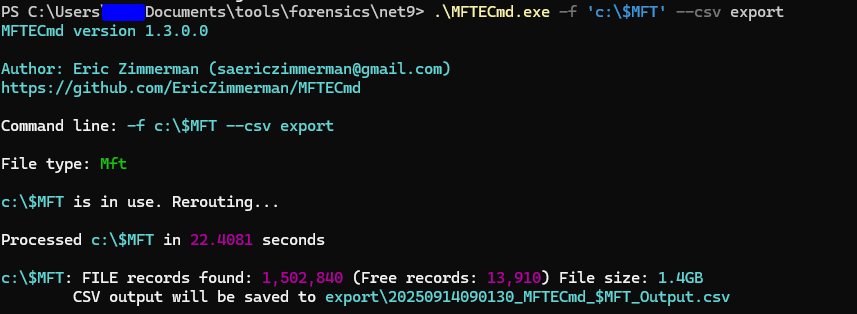 As you can see my
 C drive’s records are about 1,500,000 which is alot.
And now we can use Timeline Explorer to actually parse this csv file: 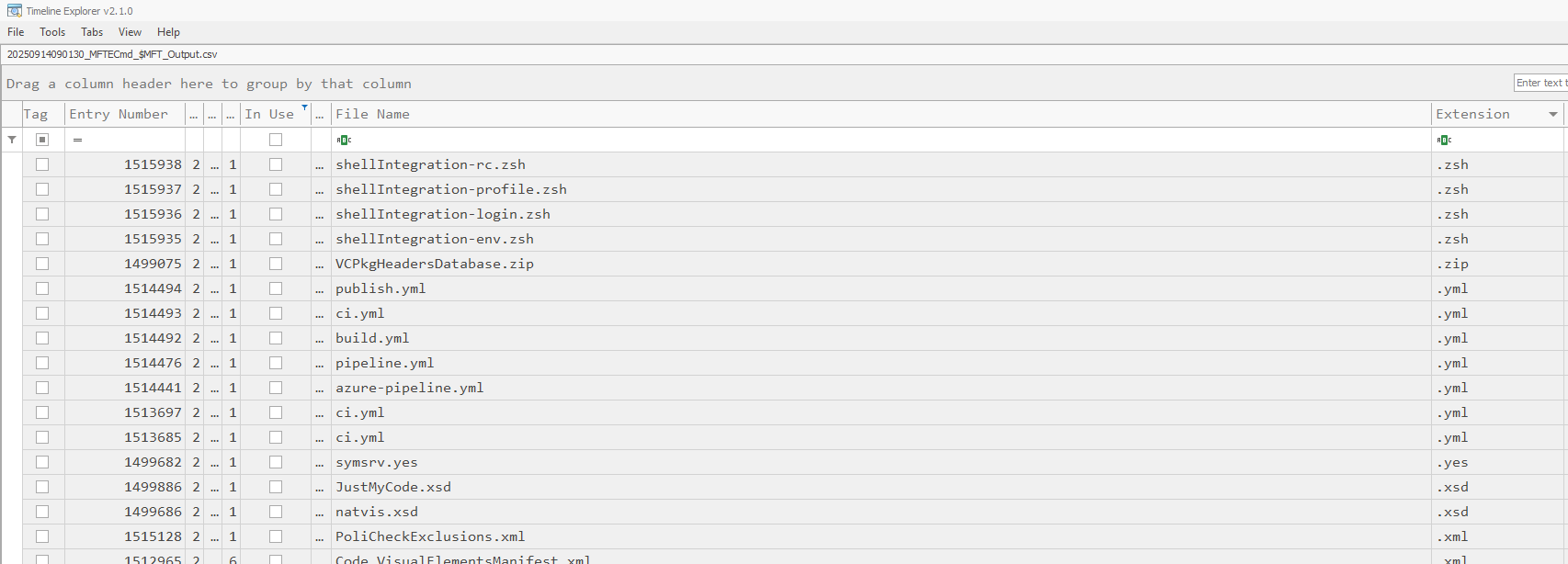 It has many columns Including but not limited to:
- Creation date
- Updated date
- Accesed date
- Parent Directory
- Had ADS (Alternate Data Stream)
For this demonstration I chose to show files that are deleted or rather not In Use. Now if these files are not wiped or haven’t been overwritten, I still can recover them.
Zone Identifier
Zone Identifier is an Alternate Data Stream (ADS) tied to downloaded files & it’s also known as Mark of The Web(MOTW). It has an ID which specifies how the file was moved to the system:
0: Own computer1: Local intranet zone2: Trusted sites zone3: Internet zone4: Restricted zone
So if we download a file from the internet, It will be assigned an ADS named Zone.Identifier which will have an ID of 3 because it was downloaded from the internet, furthermore it might also have the URL from where it was downloaded from. For offensive cases it might be helpful to change the information stored in that ADS which might lead to misinformation on defensive side.
Alternate Data Stream (ADS)
ADS allows data to be forked into existing files without affecting the main file’s size or appearance in standard file browsing utilities. And so it can be used to hide malicious payloads into other data streams that cannot be viewed by simply double-clicking a file.
Example
I have a Downloaded file and I want to check its Zone.Identifier ADS:  As you can see the
 ZoneId is 3 which indicates that it was downloaded from the internet.
Volume Shadow Copy
Volume Shadow Copy (VSS) is a NTFS mechanism where it takes a snapshot of the drive and when it’s enabled and a snapshot is taken, deleted files may still be recoverable through that snapshot if it is available in it. From our offensive standpoint it’s a way to gain access to sensitive and in use files that otherwise we couldn’t access. It’s actually one of the ways to dump SAM, SYSTEM, and SECURITY hives that we can’t normally copy & paste.
Acquiring NTDS.dit
To make an example, I will take a snapshot of the C drive and then dump NTDS.dit which is the Active Directory database and highly sensitive. 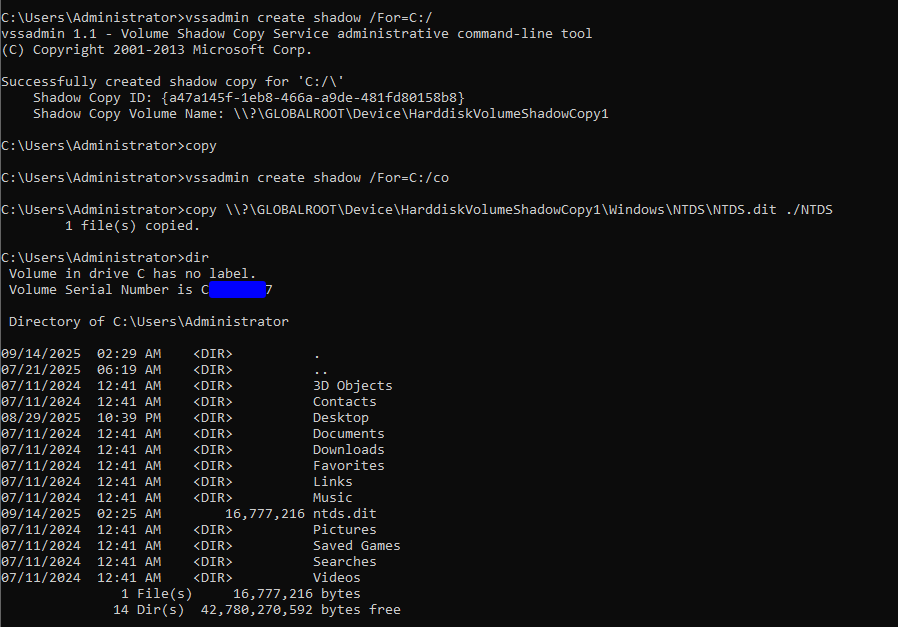 As you can see now I have a
 NTDS.dit file in my home folder which then I can use to dump all the objects’ secerts.
Data Recovery
Data recovery is an essential phase of investigation from which we can retrieve deleted files that are still recoverable and gain additional artifacts. In short, whenever a file is deleted it is not immediately wiped from the disk. The clusters that were used for the file are simply marked as unallocated meaning they are not currently in use by a file. It is actually deleted when it’s either wiped which means to fill that space with zeroes/nonsense or that it’s overwritten.
For offensive cases it can be helpful where the user might have deleted an important files, for instance a txt file containing company’s internal services’ passwords. By recovering this file we as attackers can now have access to those sensitive services.
Metadata
There are to ways to recover files in NTFS and the first and the easiest and most reliable way is by the use of metadata. It works by examining the deleted file’s properties and then reconstruct the file as it even has information about starting cluster, file size etc.
Tools that are used for this technique are AXIOM, FTK, X-Ways, Autospy, ..
Data layer (File carving)
Modern OSs recycle metadata quickly which means we might not be able to recover files that way, but fear not! We still can recover files by scanning the beginning of every cluster looking for specific file headers matching known file types. It has its limitations but let’s not worry about that now.
The tool we can use for this is Photorec.
Example
I will use PhotoRec to recover deleted file by file carving. It’s a really powerful tool that supports alot of file types: 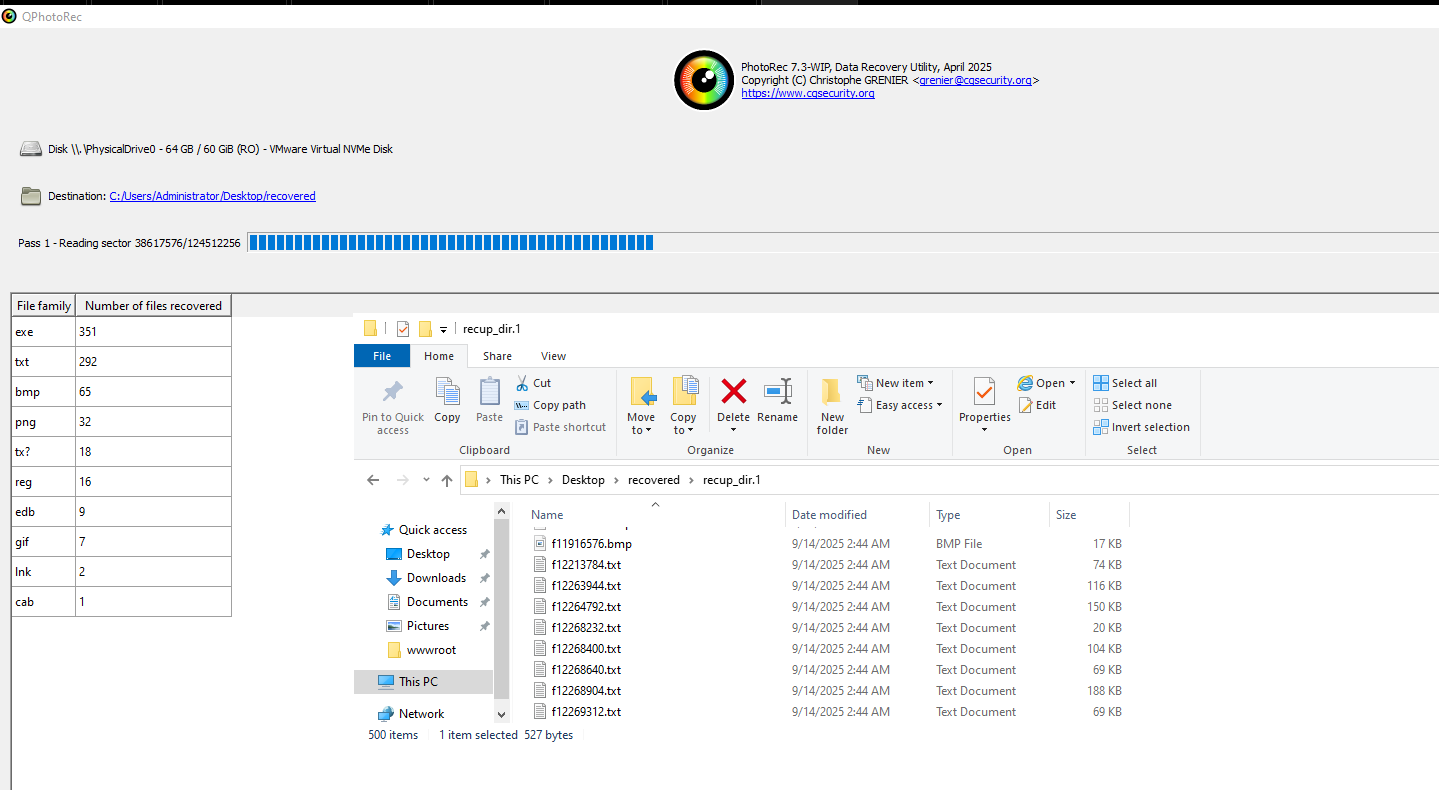 I have started the operation as you can see a lot files have been recovered even though it’s not finished yet. And there might be sensitive information among them.
Stream carving
Stream Carving is about extracting fragments of data from memory/unallocated space/allocated database files and …
For example we might be looking for URLs or encryption keys in the memory. For this method we can use yara and it may sound strange as it’s used in detecting binaries that are malicious. But as it has a high speed and supports regular expressions, it can be used for our offensive cases as well. Furthermore, another tool that can be used for this scenario is Belkasoft Evidence Centre which can analyze files like pagefile.sys.
Pagefile analysis
For this example we’ll be using a captured pagefile.sys to see if there are any HTTP/HTTPS URLs in it. The yara rule we’ll be using is as follows:
1
2
3
4
5
6
7
8
9
rule detect_http_https_urls
{
    strings:
        $http = /http:\/\/[a-zA-Z0-9.-]+\.[a-zA-Z]{2,6}(\/\S*)?/nocase
        $https = /https:\/\/[a-zA-Z0-9.-]+\.[a-zA-Z]{2,6}(\/\S*)?/nocase

    condition:
        $http or $https
}
Then using yara.exe we can check this rule against pagefile.sys:
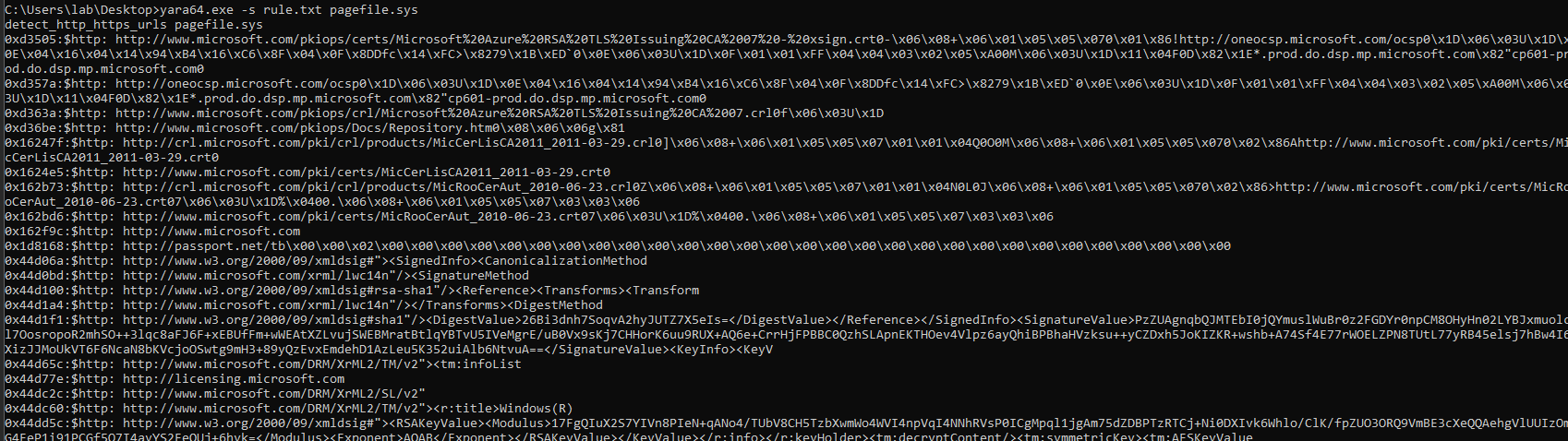
And as you can see, it detected URLs matching that pattern in pagefile.sys.
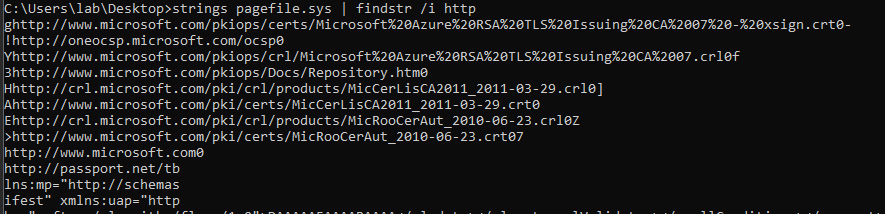
Another tool we can use is strings.exe from sysinternalls to get printable characters from the file:
File metadata
Files contain metadata that is information about the file itself. It may contain creator’s name, creation/modification/access time, ..
It is useful for us attackers in the way that it includes the creator’s name which might give us an additional username to keep in mind, and it might also contain the software used to make that file, for example it might be a PDF and we may be able to get the software’s version that was used for the creation of PDF and then from that we may be able to exploit the software if it’s vulnerable. Furthermore images taken by phone cameras might have information like location which is considered sensitive in the hands of an attacker as attackers can use their OSINT skills to figure out more information about the location and about the person.
The tool that can be used for this is exiftool.
example
I’ve downloaded a sample docx file from ASecuritySite to analyze it using exiftool.
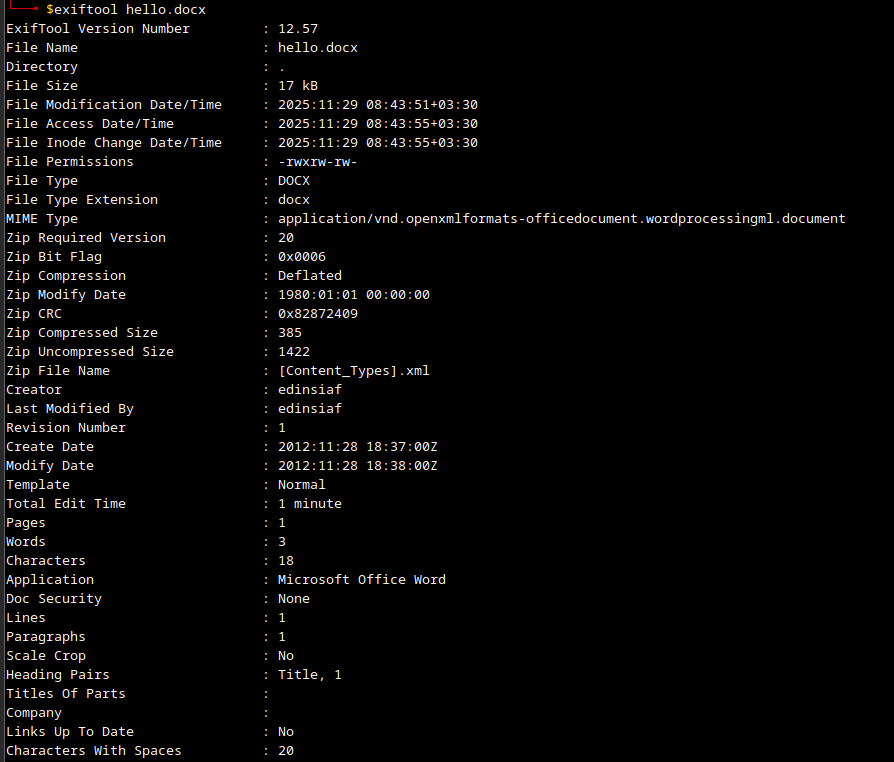
As can be seen in the above picture, there are many fields in the metadata of the file that can be of importance to us as attackers:
- Creator name
- Application used
- ..
Using this information the attackers can then add a username to their wordlist since they have the creator’s name. Or perhaps look for exploits for the application used to generate the document.
Registry
Registry is a collection of database files storing vital configuration data for the system. It includes alot of information about the system and configuration for apps.
System configuration
Registry contains information about the system configuration in various paths and for different components.
- Microsoft version
SOFTWARE\Microsoft\Windows NT\CurrentVersionSYSTEM\Setup\Source OS
- Computer name
SYSTEM\<currentcontrolSet>\Control\ComputerName\ComputerName
- System timezone
SYSTEM\<currentControlSet>\Control\TimeZoneInformation
- Installed applications
1
2
3
4
5
6
7
8
9
  SOFTWARE\Microsoft\Windows\CurrentVersion\Uninstall
  NTUSER\SOFTWARE\Microsoft\Windows\CurrentVersion\Uninstall
  NTUSER\SOFTWARE\WOW64Node\Microsoft\Windows\CurrentVersion\Uninstall
  SOFTWARE\Microsoft\Windows\CurrentVersion\Installer\UserData\<SID>\Products
  SOFTWARE\Microsoft\Windows\CurrentVersion\Appx\AppxAllUserStore
  SOFTWARE\Microsoft\Windows\CurrentVersion\App Paths
  NTUSER\SOFTWARE\Microsoft\Windows\CurrentVersion\App Paths
  NTUSER\SOFTWARE\Microsoft\Windows\CurrentVersion\Explorer\FileExts
  NTUSER\SOFTWARE\Microsoft\IntelliType Pro\AppSpecific
These information can be helpful in information gathering phase. we as attackers can query these registry paths and find the necessary information.
User/Group information
SAM hive has information about local users including their account creation time, last login, last failed login, etc.
There is another registry path SOFTWARE/Microsoft/Windows NT/CurrentVersion/ProfileList which lists both local & domain users with interactive logins to the system.
Example
In profile list registry path we have something like the following: 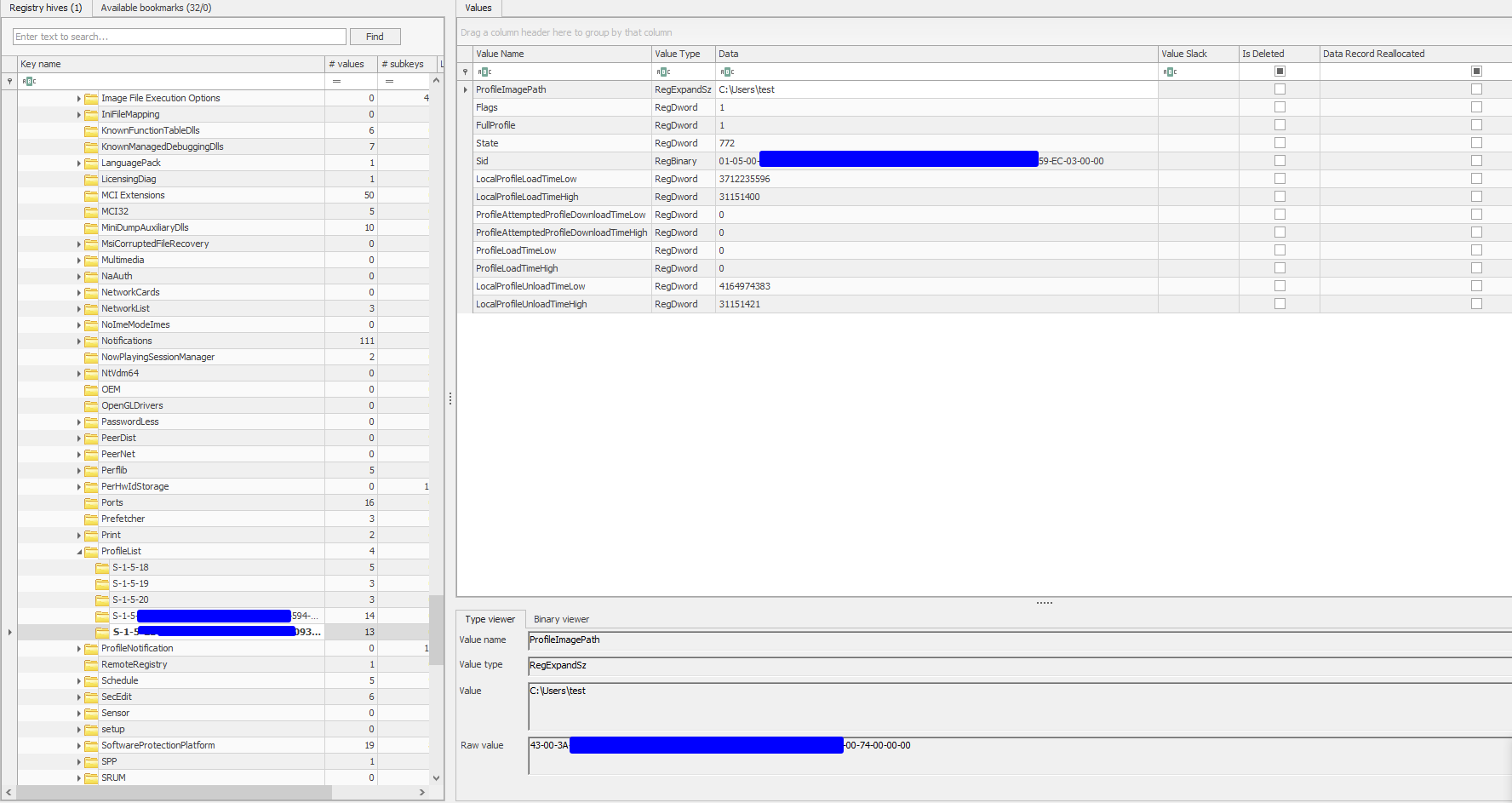 And as you can see it lists both local and domain users’ information which can be helpful for information gathering from offensive side.
User Activity
There are also two registry paths used for gaining information about the user activity.
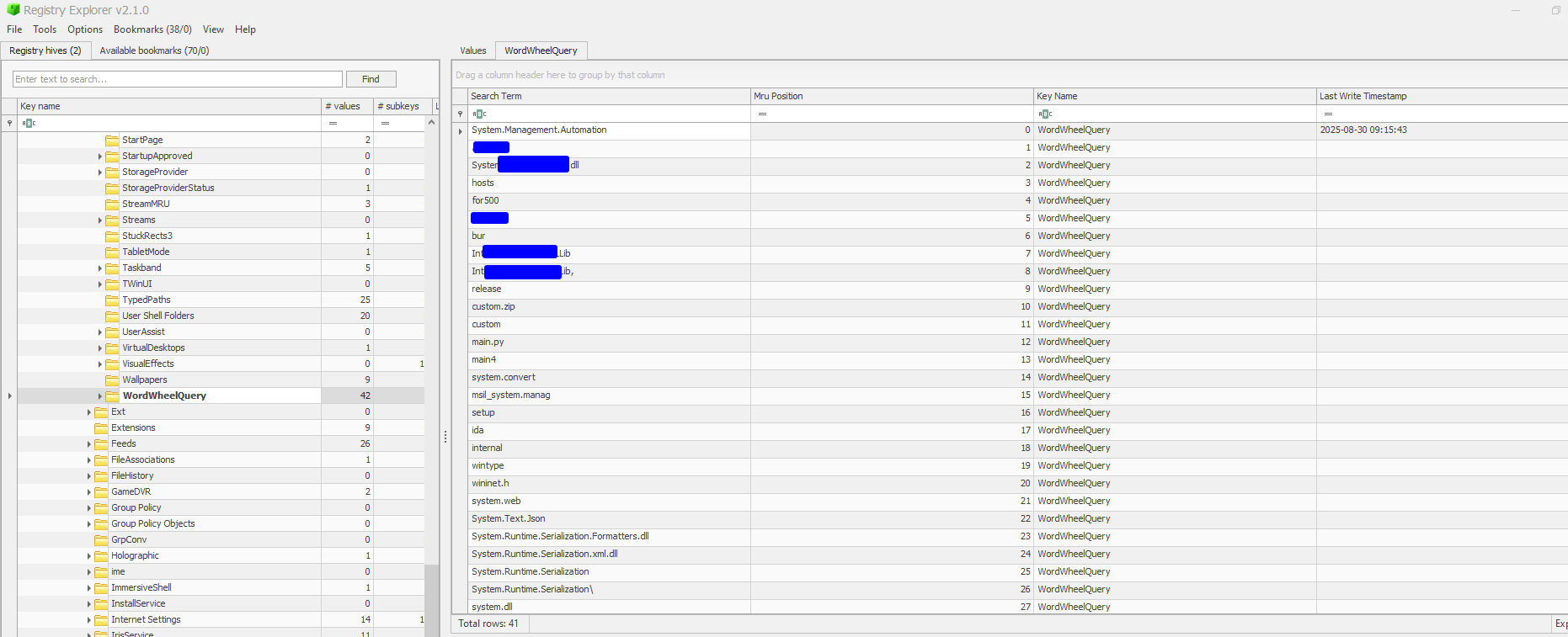
Windows search history
This includes information about seraches that the user made in file explorer & start menu. This can be useful in finding out in what the user has been searching about. This might include sensitive files/directories. Located in NTUSER\Software\Microsoft\Windows\CurrentVersion\Explorer\WordWheelQuery:
Typed paths
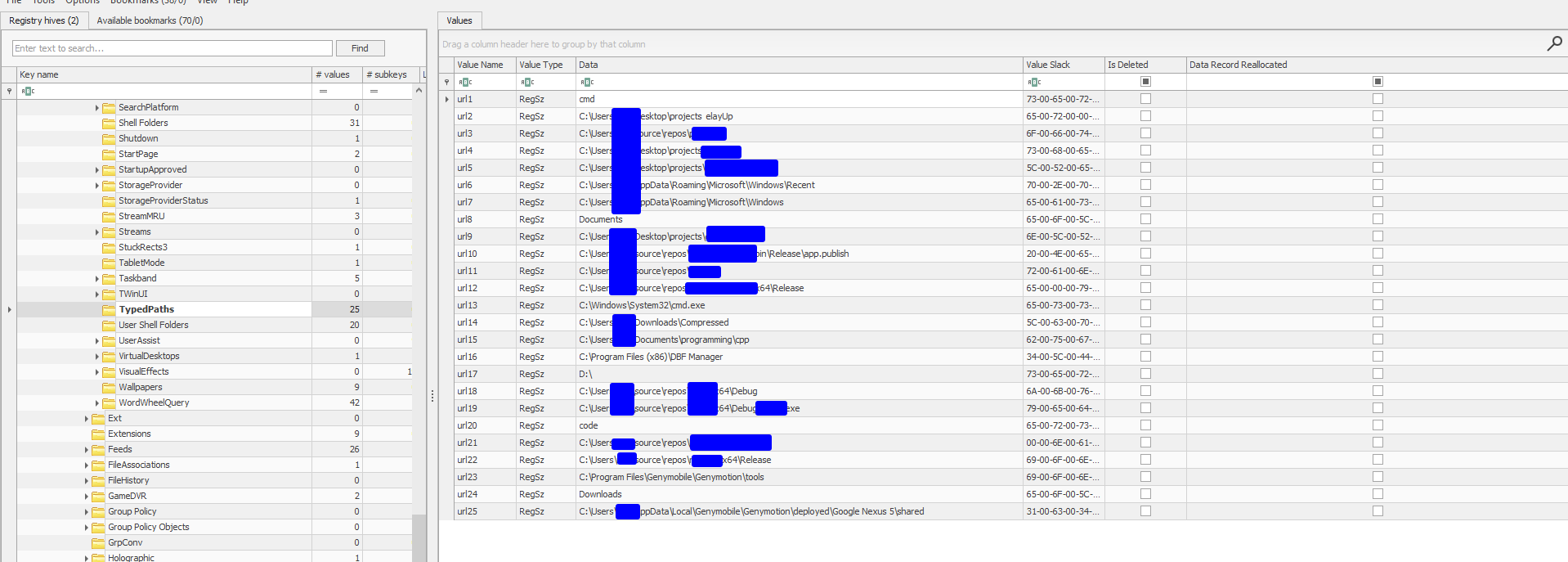
This contains information about typed paths in the path bar of windows explorer. Available at NTUSER\Software\Microsoft\Windows\CurrentVersion\Explorer\TypedPaths:
Network
Information about the networks that the system was connected to can also be of help to attackers as it might show a hint about the infrastructure. Furthermore it also contains information on what interfaces are/were available in the system. These can be retrieved in the following registry keys:
SYSTEM\<currentControlSet>\Services\Tcpip\Parameters\InterfacesSOFTWARE\Microsoft\Windows NT\CurrentVersion\NetworkCardSOFTWARE\Microsoft\Windows NT\CurrentVersion\Networklist
In the NetworkList key, there is a value named NameType which indicates the type of network which can be of the following types:
- 6 (wired)
- 71 (wireless)
- 23/53 (VPN)
- 243 (mobile hotspot)
WiFi passwords
As an extra tip, WiFi passwords that are entered in the system and the system can use to connect to those networks automatically, can be retrieved in plaintext using a single command:
netsh wlan export profile key=clear
This command exports all of the profiles that are saved in the system with their passwords.
File
There are many artifacts available in Windows for file forensics. From non-executive files to executive files and shell items. All of these can be helpful for our offensive scenarios as we can see which files/directories were accessed so it’s related to user’s activity.
Non-Executive files
These include information about files that are not executable.
Recent documents
These are files/folders recently opened by the user residing in NTUSER\Software\Microsoft\Windows\CurrentVersion\Explorer\RecentDocs registry path.
Microsoft Office file MRU
Each version of Office keeps a list of files opened within a specific office application. It’s stored in NTUSER\Software\Microsoft\Office\<Version>\<APPNAME>\File MRU.
Trusted documents
Trusted documents are the Office documents that have had their editing/macros enabled. It resides in NTUSER\Software\Microsoft\Office\<VERSION>\<APPNAME>\Security\Trusted Documents\TrustRecords. This is specially helpful for us because we now have doucments that have their macros enabled and thus we as attackers can put our own macro in there as well.
Common dialog
These are last locations previously used in application, for instance an app that includes a drop-down containing the names & paths of previously opened files. This is stored on 3 locations:
NTUSER\Software\Microsoft\Windows\CurrentVersion\Explorer\ComDlg32\OpenSavePidlMRUNTUSER\Software\Microsoft\Windows\CurrentVersion\Explorer\ComDlg32\LastVisitedPidLMRUNTUSER\Software\Microsoft\Windows\CurrentVersion\Explorer\ComDlg32\LastVisitedPidLMRULegacy
Executive files
These are information about files that were executed in the system.
Amcache
Amcache records recent processes and their hash & file version which can be beneficial for us to check the recent programs that were running and also have their version just in case the version is old and a vulnerability is found. Its location is at c:\windows\appcompat\programs\amcache.hve and the tool we can use for it is Amcacheparse.
Last command executed
This records what was run in run windows. The user might have typed sensitive stuff in the run input or there might be addresses that we can use to find more information about the environment. It resides in NTUSER.DAT\SOFTWARE\Microsoft\Windows\CurrentVersion\Explorer\RunMRU registry path.
User assist
NTUSER.DAT\Software\Microsoft\Windows\Currentversion\Explorer\UserAssist\ registry path tracks information about apps tha the user uses frequently as is shown in the start menu.
Shell items
These are lnk files that have information to access another file. Whenever a file is opened, 2 shortcuts automatically get created in recent files. One of them link to the original file and the other to its parent directory. For instance suppose you opened a file that was on a USB, this information gets stored via LNK.
Shellbags
Shellbags include information about newly accessed directories from harddrive/network/USB/control panel/settings/..
It is stored at C:\Users\<username>\AppData\Local\Microsoft\Windows and can be dumped using SBEcmd.
Jumplist
It’s automatically created by software/windows so that the user can jump directly to recently opened files/folders. The locations include:
%userprofile%\Appdata\roaming\microsoft\windows\recent\automaticdestinations%userprofile%\Appdata\roaming\microsoft\windows\recent\customdestinations
The tool we can use for this case is JLEcmd.
People who use mail usually backup and archive their mail so that the are not deleted permanetly specially in corporates that have a policy to delete emails after a certain time has passed. These archives usually have .PST, .OST, and .NST extenstions for Exchange servers. An attacker that has retrieved these files can open them using PST/OST/NST Viewer tools and view the contents inside which might contain sensitive and important information about the company and/or about the person whose archive mail is retrieved.
Browser
Browsers may contain a lot of information about the user. Users might save the credentials they use for websites in the browsers and may think that it’s a safe thing to do, but they couldn’t be more wrong as there are tools out there that can easily retrieve the necessary files and show the username & password saved for websites in plaintext. One such tool is LaZagne which is a credential recovery tool used to recover passwords from not only browsers but also chats, system, etc.
Misc
Additional tips & tricks are included in this section.
Event Tracing for Windows (ETW)
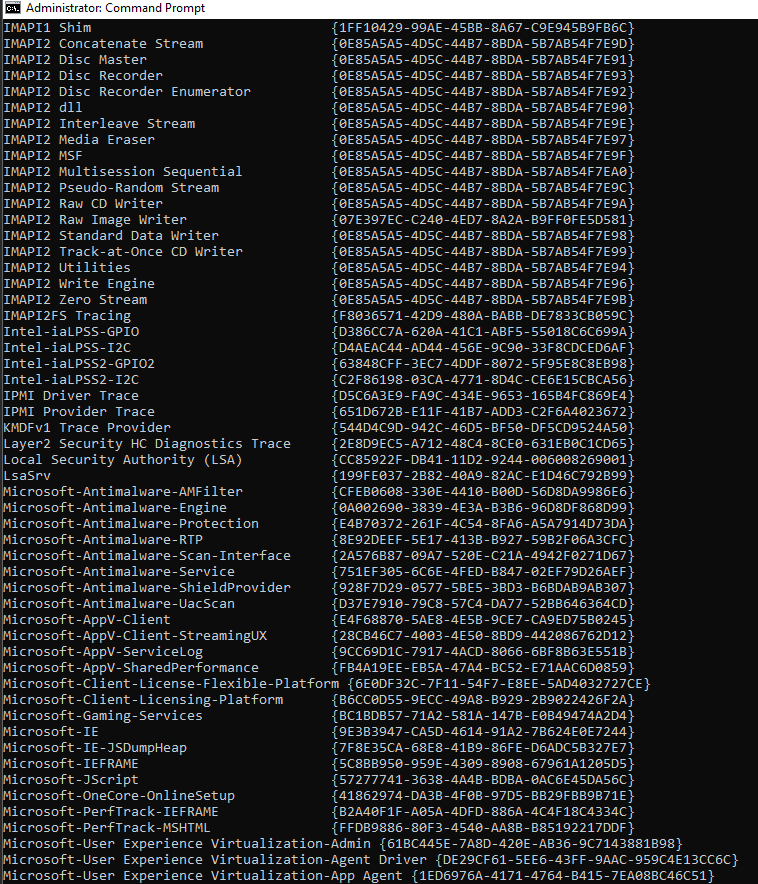
ETW is an event logging framework built into Windows that allows various software components and system processes to log detailed events. The architecture is as follows:
- Provider: A provider is a software component that emits events identified by a GUID that other softwares can use to consume the events.
- Controller: A controller defines & controls trace sessions.
- Consumer: A consumer receives events after a trace session has recorded them. Additionally it has a callback function that decides what to do after consuming the event.
To query the available providers in the system we can use logman query providers:
Consumption
Now that we know about the existence of these providers, we can write a consumer software to consume the events they emit. Specfically I want to showcase how it is done by consuming Microsoft-Antimalware-* providers which might give us an extensive amount of information about the protections:
1
2
3
4
5
6
7
8
9
10
11
12
13
14
15
16
17
18
19
20
21
22
23
24
25
26
27
28
29
30
31
32
33
using Microsoft.Diagnostics.Tracing;
using Microsoft.Diagnostics.Tracing.Etlx;
using Microsoft.Diagnostics.Tracing.Session;
using System;
using System.Data.Common;
class Program
{
    static void Main()
    {
        using (var session = new TraceEventSession("MyRealtimeSession"))
        {
           session.EnableProvider("Microsoft-Antimalware-AMFilter");
           session.EnableProvider("Microsoft-Antimalware-Protection");
           session.EnableProvider("Microsoft-Antimalware-Engine");
           session.EnableProvider("Microsoft-Antimalware-Engine-Instrumentation");
           session.EnableProvider("Microsoft-Antimalware-Protection");
           session.EnableProvider("Microsoft-Antimalware-RTP");
           session.EnableProvider("Microsoft-Antimalware-Scan-Interface");
           session.EnableProvider("Microsoft-Antimalware-Service");
           session.EnableProvider("Microsoft-Antimalware-ShieldProvider");
           session.EnableProvider("Microsoft-Antimalware-UacScan");
            session.Source.Dynamic.All += delegate (TraceEvent data)
            {
                string message = "";
                foreach (var name in data.PayloadNames) {
                    message += ($"{name} = {data.PayloadByName(name)}");
                };
                Console.WriteLine(message);
            };
            session.Source.Process();
        }
    }
}
Above is a C# code I’ve written to consume various Microsoft-Antimalware-* providers.
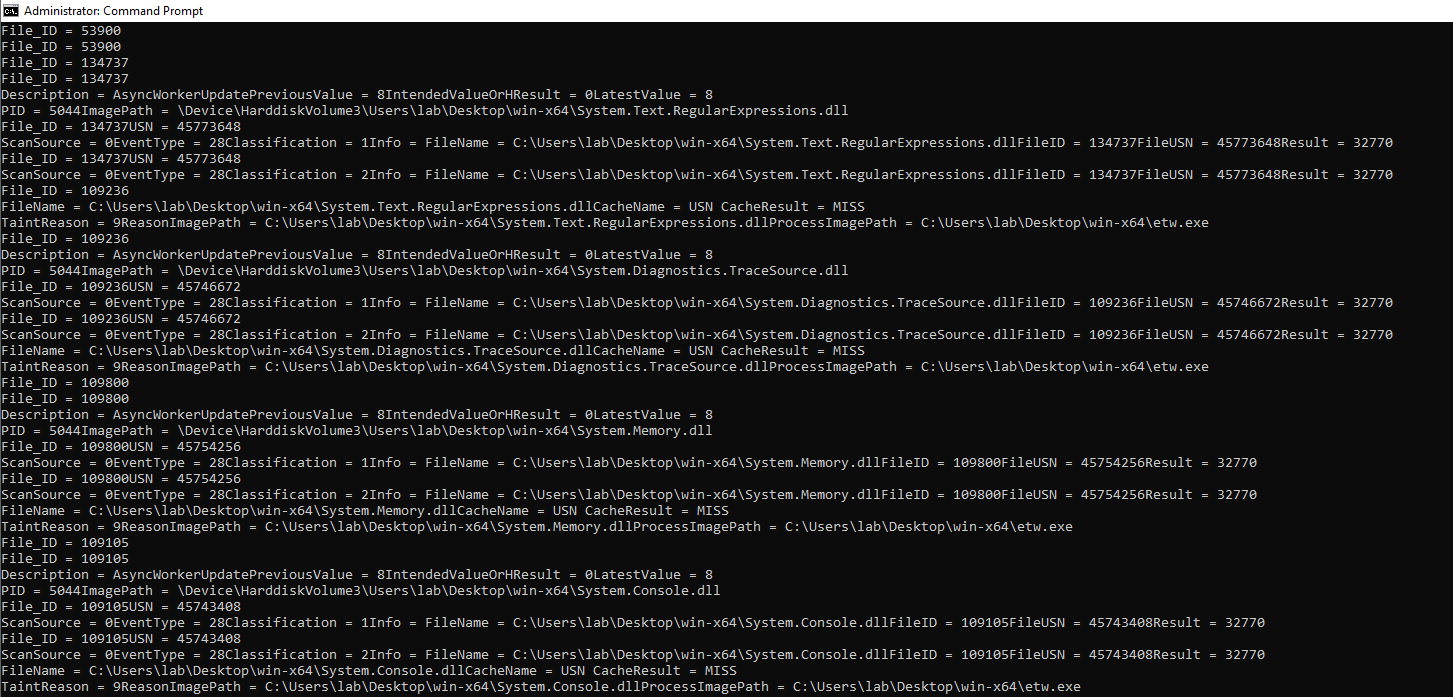
Now after running the program, we were able to consume the events emitted by those providers. We even have events indicating the file we used to consume the events, etw.exe, was scanned!
In offensive point of view, we can consume events provided by various providers that are there and learn about the system’s inner workings, for instance by seeing the events that are emitted by Microsoft-Antimalware-*, we are able to understand how and why a binary is classified as malicious.
Recycle Bin
Files deleted that are not permanently deleted and only moved to Recycle Bin are not really wiped/deleted off the disk, They are simply moved to a new location inside the Recycle Bin based on its architecture ofcourse. These files can effortlessly be restored again.
Each user has a subfolder in recycle bin which is named after their own SID. Inside each of these subfolders there are two additional files for each deleted file:
$R######(Data files): Original file content$I######(INFO2): Original full path, name, and metadata
The tool we can use to analyze the recycle bin is RBCmd.
Note that even if files are permanently deleted from recycle bin, the space that were allocated for those files are only marked as available to write to and they can still be recovered if not overwritten. To completely delete the data, they should be wiped, or in other terms, filled with zeroes.
Windows’ Credential Manager
Windows Credential Manager is a built-in utility for securely storing and managing usernames and passwords for websites, apps, and network resources.
The credential manager can be accessed without any protection if you are a local admin. If you check the records that exist there, they are not in plaintext. However, when a system is compromised with local admin access, the intruder can get a backup of the credential manager and restore it their own attacking machine, using the credentials that were stored in the victim’s machine.
References
nooranet.com Windows Forensics course by Mahyar Safaei. Special thanks to them for their valuable course on Windows Forensics.
https://psmths.gitbook.io/windows-forensics/
https://www.youtube.com/watch?v=ffFlxSAzTFE
https://mohammedalhumaid.com/wp-content/uploads/2022/01/windows-forensics-analysis-v-1.0-4.pdf
https://www.cybertriage.com/blog/windows-registry-forensics-cheat-sheet-2025/
https://ilabs.eccouncil.org/windows-forensics/
https://www.geeksforgeeks.org/blogs/windows-forensic-analysis/
https://www.hackingarticles.in/forensic-investigation-pagefile-sys/